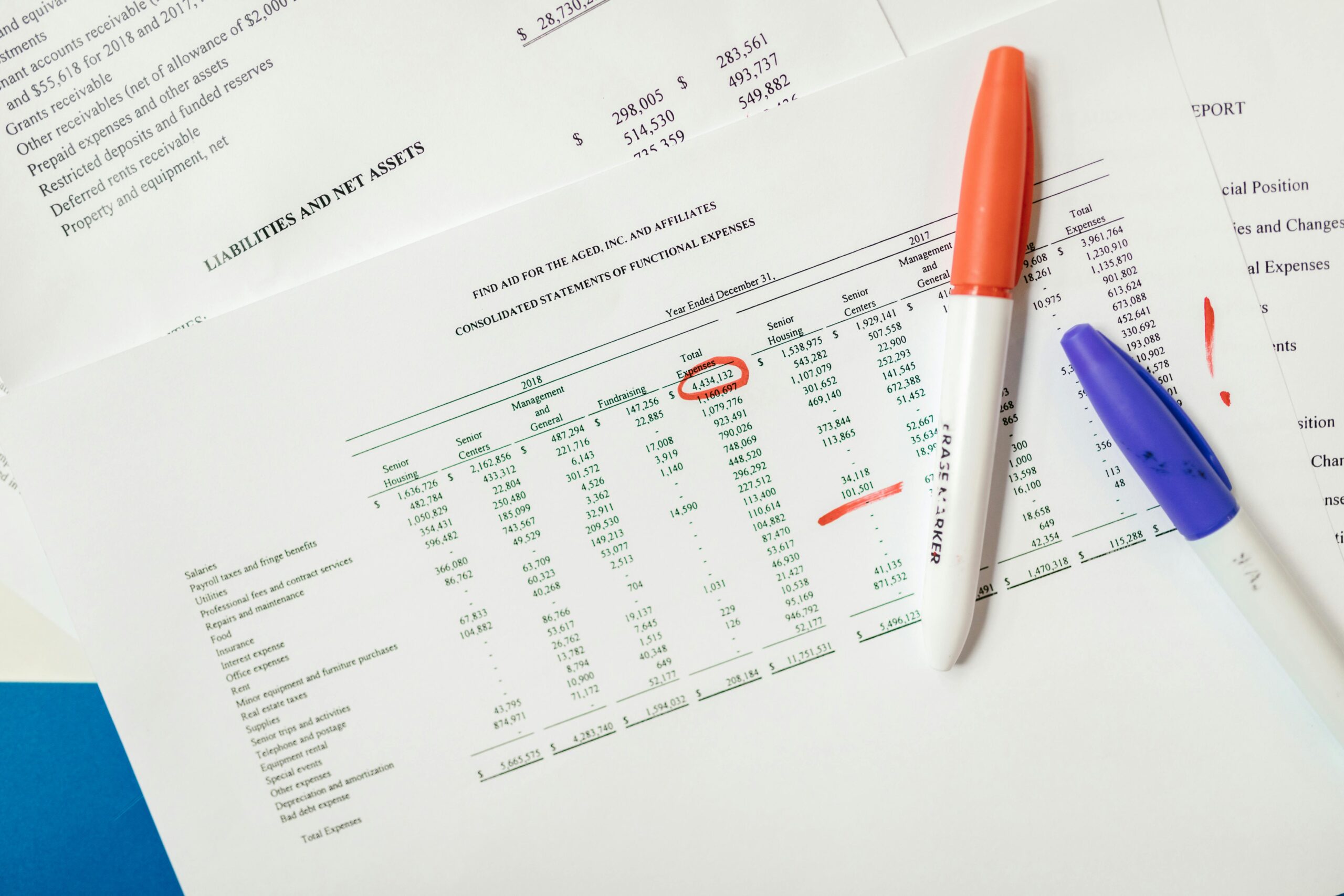
Nothing ruins the look of a spreadsheet faster than when columns trail across multiple printed pages. Whether you’re preparing a financial report, a project tracker, or a presentation-ready table, Excel’s Fit to One Page feature ensures everything lays out neatly and professionally.
In the first class each semester, I give an assignment to my students to help them learn this critical setting. Here’s how to do it…
To apply this setting, navigate to Page Layout → Page Setup → Scale to Fit, then adjust the width and height to 1 page. Instantly, Excel compresses your data so that the entire spreadsheet prints cleanly onto one sheet. You can also use Page Break Preview to drag column and row boundaries exactly where you want them—great for balancing white space and readability.
There are a few best practices to keep in mind. Before scaling everything down, reduce unnecessary column width, remove blank rows, and consider abbreviating headings. If the sheet still feels cramped, switch page orientation to landscape or slightly reduce font size. This way, your data remains legible without looking squished.
Fit to One Page is a small formatting trick with massive impact—especially when reporting to leadership or distributing printouts. A clean, one-page layout communicates professionalism, boosts readability, and ensures your audience focuses on the numbers—not the messy formatting.