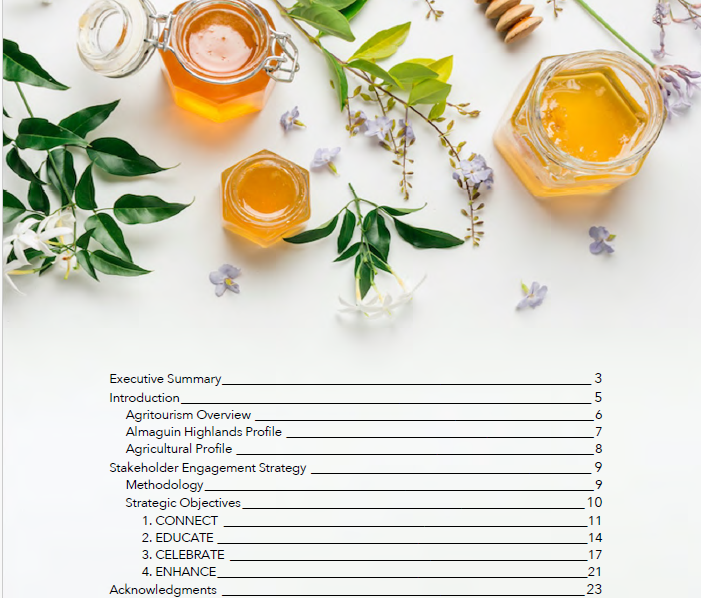
Long documents can quickly get confusing — whether you’re writing a report, manual, white paper, or long-form guide. A Table of Contents (TOC) gives your readers a clear roadmap and helps them navigate. Microsoft Word makes creating a TOC remarkably easy — if you structure your document correctly from the start. Microsoft Support+1
Step 1: Use Heading Styles
Before you build your TOC, make sure all section titles are formatted with Word’s built-in heading styles (Heading 1, Heading 2, Heading 3, etc.). Word relies on these styles to know which text to include in the TOC. To apply: select your heading text → go to Home → Styles → choose the appropriate “Heading” style. GCFGlobal.org+1
Step 2: Insert the Table of Contents
Place your cursor where you want the TOC (usually near the front of your document). Then go to References → Table of Contents → choose an automatic style. Word will automatically build the TOC based on your headings, with page numbers and a hierarchical structure. Microsoft Support+1
Step 3: Update When Your Document Changes
If you add, remove, or move sections, simply right-click on the TOC and choose “Update Field” (or “Update Table”) — then select whether to update just page numbers or the entire table. This keeps your TOC accurate without manual retyping. Microsoft Support+1
Why It Matters
A TOC does more than list sections — it improves readability and gives your document a polished, professional structure. For long documents, it’s practically essential. Even for shorter documents, a TOC shows organization and makes navigation easier. As one guide notes, a TOC “gives the reader a bird’s eye view of the document.” GoSkills.com+1
For a more visual walkthrough, check out the official Microsoft instructions here: Insert a table of contents. Microsoft Support
And this video tutorial is especially helpful if you prefer a video guide:
https://youtube.com/watch?v=45s9VKQ6wEI%3Frel%3D0%26playsinline%3D1%26origin%3Dhttps%253A%252F%252Fchatgpt.com%26enablejsapi%3D1%26widgetid%3D1%26forigin%3Dhttps%253A%252F%252Fchatgpt.com%252Fc%252F693867d7-b268-832a-ae11-3b70c8325bc2%26aoriginsup%3D1%26vf%3D1
With just a few simple steps, you can turn a long, complex document into a clean, well-organized, easy-to-navigate file — and make a great impression with readers.